
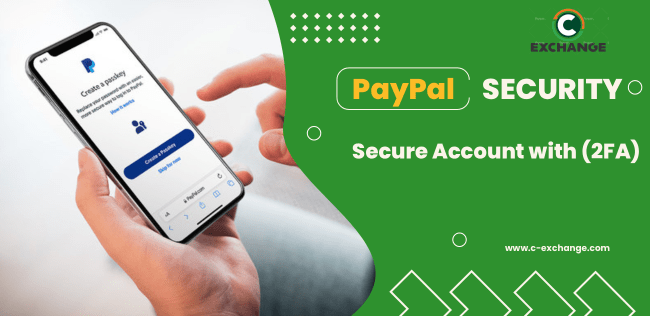
Securing your PayPal account is essential to protect both your finances and personal information. With the rise of online fraud, one of the best ways to secure your account is by enabling Two-Factor Authentication (2FA). This guide will show you how to set up PayPal 2FA and explain why it’s crucial for your online security.
What is Two-Factor Authentication (2FA) on PayPal?
Two-Factor Authentication (2FA) adds an extra layer of security to your PayPal account. After entering your PayPal password, you’ll also need to provide a second verification step, such as a code sent to your mobile phone or generated by an app. This makes it much harder for unauthorized users to access your account, even if they have your password.
Benefits of Enabling Two-Factor Authentication on PayPal
-
Enhanced Security: 2FA protects your PayPal account, even if your password is compromised.
-
Peace of Mind: With Two-Factor Authentication, unauthorized access becomes nearly impossible.
-
Simple and Quick Setup: The process is easy to complete and can be done in a few minutes.
How to Set Up Two-Factor Authentication (2FA) on Your PayPal Account
Follow these simple steps to enable Two-Factor Authentication (2FA) for your PayPal account and secure your online transactions:
Step 1: Log In to Your PayPal Account
Go to PayPal’s website and log in using your registered email address and password.
Step 2: Access Security Settings
-
Click the gear icon (Settings) located at the top-right corner of the page.
-
From the dropdown menu, select Security.
Step 3: Set Up Two-Factor Authentication (2FA)
-
Find the 2-step verification section on the page.
-
Click Set Up or Update next to the 2FA option.
-
Choose your preferred method of verification:
-
SMS Text Message: Receive a verification code on your phone.
-
Authenticator App: Use apps like Google Authenticator or Authy to generate a code.
-
Step 4: Verify Your Phone or Authenticator App
-
For SMS, enter your phone number and verify it with the code sent to your device.
-
If you select an Authenticator App, scan the QR code provided by PayPal and enter the code to verify.
Step 5: Confirm and Save Changes
After verifying, click Confirm and Save to complete the setup process.
Why You Should Enable Two-Factor Authentication for PayPal
1. Improved Account Security
Enabling PayPal 2FA ensures that even if your password is exposed, your account remains secure because attackers will need both your password and a verification code.
2. Prevent Unauthorized Access
Two-Factor Authentication is a powerful defense against unauthorized access, significantly reducing the risk of fraud.
3. Quick and Convenient
The PayPal 2FA setup is fast and easy, and offers various verification options, making it convenient for users to protect their accounts.
Tips to Keep Your PayPal Account Safe and Secure
-
Use a Strong Password: Ensure your PayPal password is unique and strong. Avoid using the same password for multiple accounts.
-
Avoid Public Wi-Fi: Do not log into your PayPal account when connected to public Wi-Fi networks to prevent unauthorized access.
-
Monitor Your Transactions Regularly: Keep an eye on your PayPal account for any suspicious activity or transactions.
-
Keep Contact Information Updated: Make sure your phone number and email address are always current to receive important security alerts.
Conclusion: Protect Your PayPal Account with Two-Factor Authentication
Enabling Two-Factor Authentication (2FA) for your PayPal account is one of the most effective ways to protect yourself against cyber threats and unauthorized access. Don’t wait—take action now and ensure your online transactions remain secure.
For more security tips and to stay informed about the latest financial trends, visit c-exchange.com.





Leave a Comment